


Uploading and Adding Your Videos on Sato
You can upload videos on your Sato account from two different places.
- From within a video player
- From dashboard and video library
Uploading from within a video player
After creating a new video player, Click on “+Add Video”
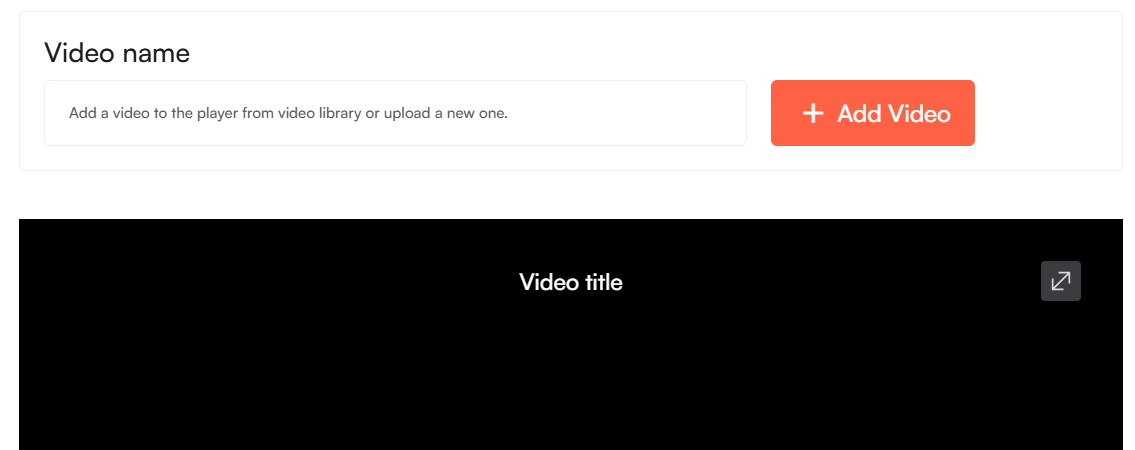
A pop-up window will appear where you can upload a video from your device or choose from an already uploaded video.
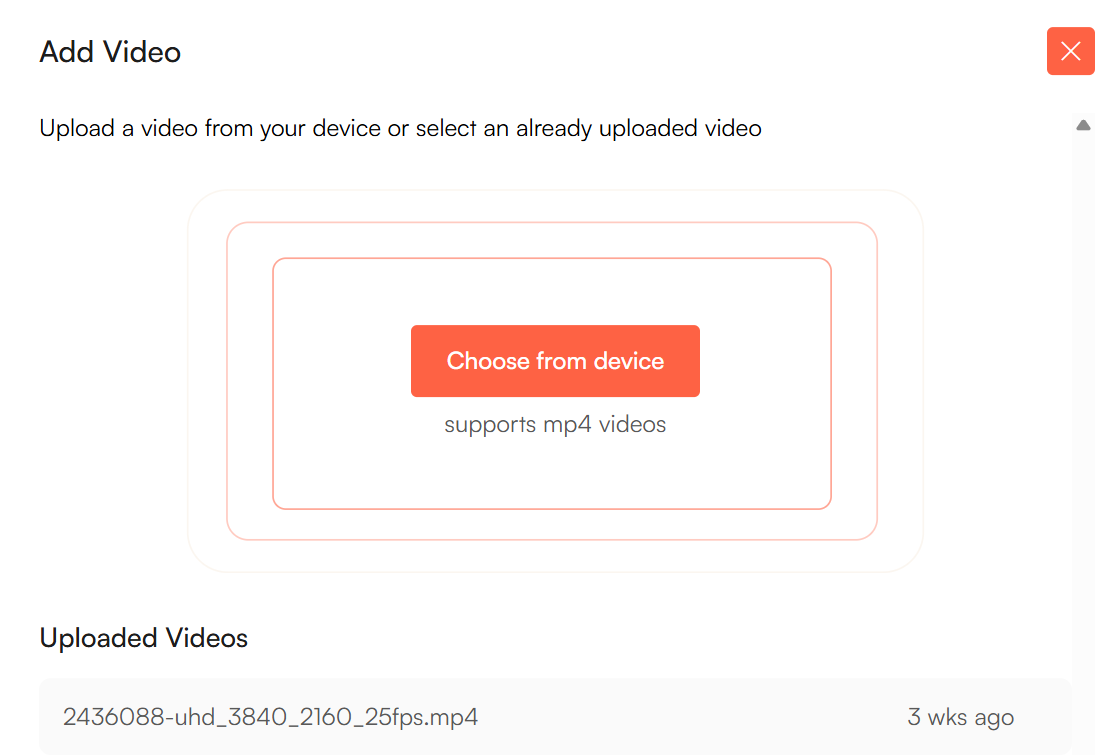
To upload from your device, click on “Choose from device”
The file picker window will appear and you can now select the file from your device.
Once selected, click on “Upload” and the video will be uploaded on your Sato video library and linked with the Sato video player you created.
In case you want to change the video you just added, click on “Choose another” instead of clicking on “Upload”
Once your video is successfully uploaded, you can see the video file name added next to the “+Add Video” button
If you wish to replace the video which you added to the player, simply click on the “+ Add Video” again to either upload one from your device or choose the video from the list found on the upload pop-up window.
Uploading from Dashboard and Video Library
To upload directly from the dashboard, click on “ Upload New Video” and follow the same steps as you would while uploading from within a video player
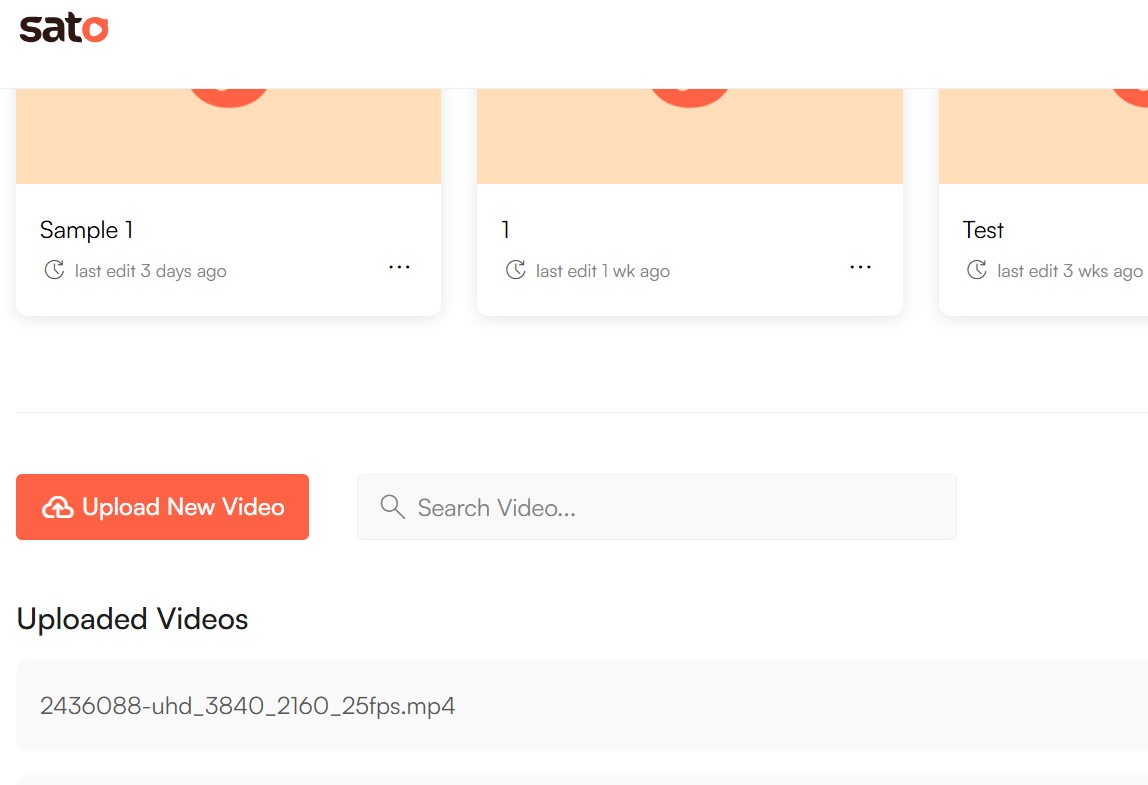
To upload from your video library, click on “Video Library” on the top navigation bar

Now you are on the Video Library, where you can see the list of all videos you have uploaded to your Sato.
To upload, click on “Upload New Video” and follow the same steps as you did earlier while uploading directly from the dashboard or within a video player.


