How to build a custom video player on Canva?
We know that you’ve been trying your best to make your portfolio or pitch deck 2x more stunning and clickable. Designing it on Canva is super easy; and instead of putting just static images, you have decided to go with videos, too – which you should, because videos are worth more than a thousand pictures.
So, for that, you will be needing an interactive video player that does justice to your effort.
But, can you actually build such a player on Canva? Well, not really.
But here’s the good news! You can create a video player for free using Sato. Don't worry, it only takes a few minutes to build one, and you can embed the video link into your Canva project, right away.
So what exactly is Sato and why it’s the ideal choice
Sato’s been loved by marketers, designers and no-code developers. It is a no-code branded video player that lets you customize the player entirely – changing the color of the play button, putting your brand logo, controlling the playback, adding CTA (call-to-action), captions or thumbnails – you name it and you can do everything to match the look and feel of your brand.
But how is Sato’s embedding feature any different?
A video player can shape how users interact with your project. The right player can help provide the satisfactory video experience that you want to give your potential clients.
Sato does exactly that – it puts you in total control.
Let’s break it down how.
- Consistent performance across devices and browsers
Videos don’t always behave the same across screens and browsers when embedded with standard players – and it shows in playback quality and performance. As a result, your entire project can feel clunky. Sato ensures seamless compatibility across devices and browsers, delivering fast, smooth playback.
- A distraction-free viewing experience
And since your goal is to keep clients focused on your project, you can do that by providing them with a distraction-free viewing. Yes, your clients won’t get any irrelevant ad recommendations before, during or after the video, which standard players typically do, taking them away from your site.
How you can embed your videos on Canva
Before anything else, you’ll first need to build the custom video player on Sato. And this blog will walk you through how to do it.
Once you’re video player is ready, you can:
- Go to Canva and open any of your projects.
- From the editor side panel (which is to your left-hand side), click on ‘Apps’, then type 'Embed' into the search bar, and a list will appear.
- From that list, select the first option which says Embed.
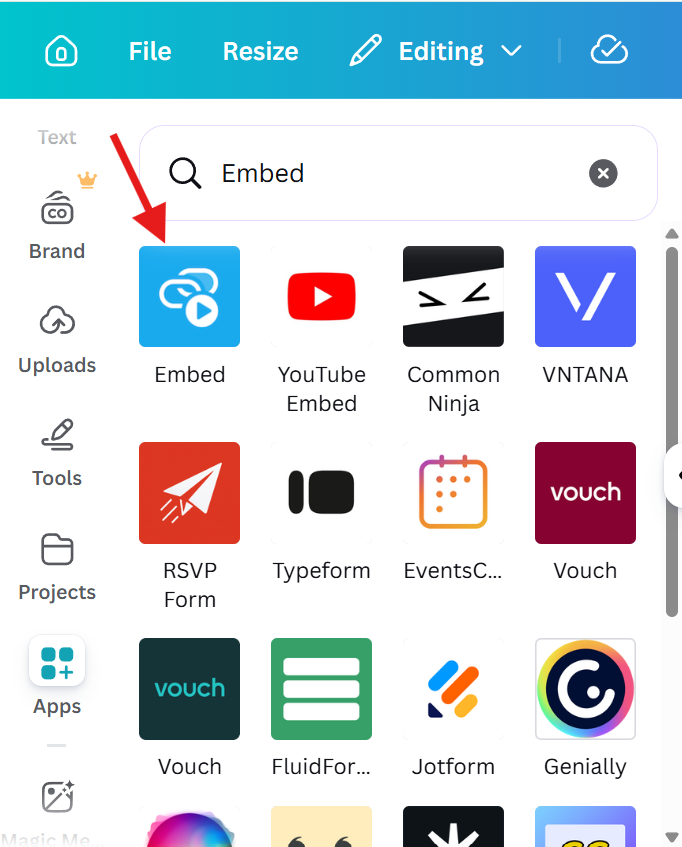
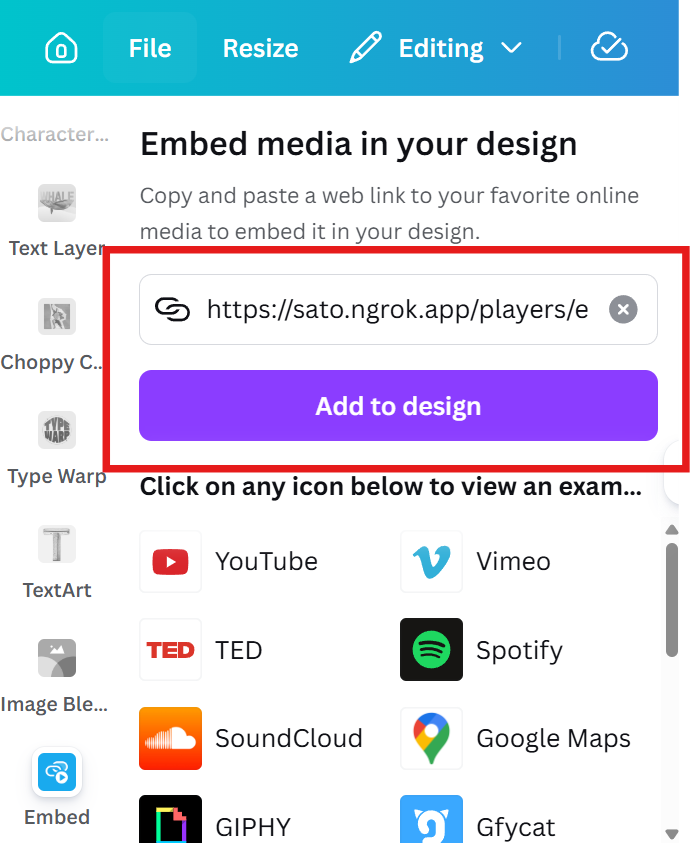
- When you select ‘Embed’, the following window will appear.
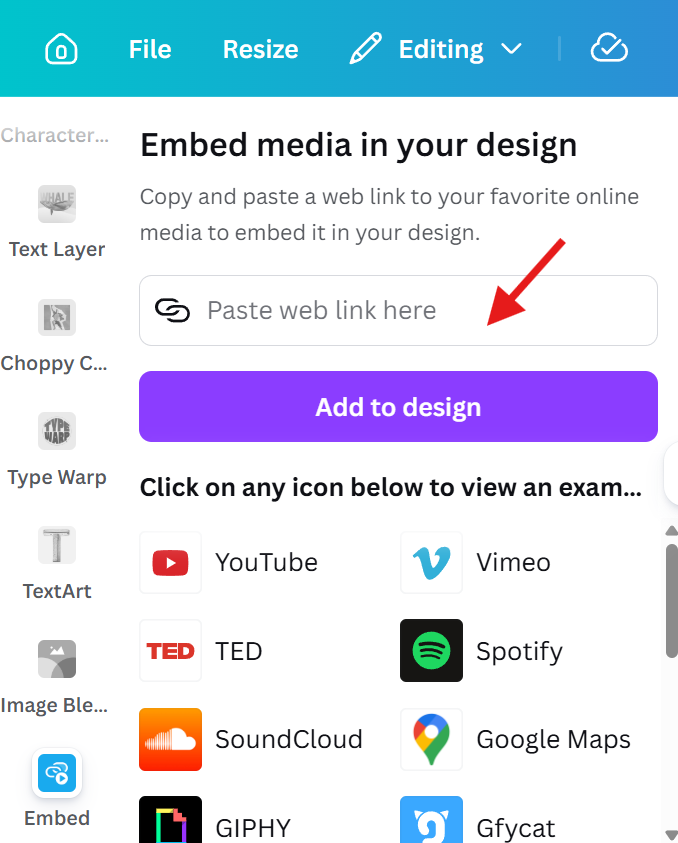
- Next, go to your Sato dashboard and copy the embed URL (Sato video embed link).
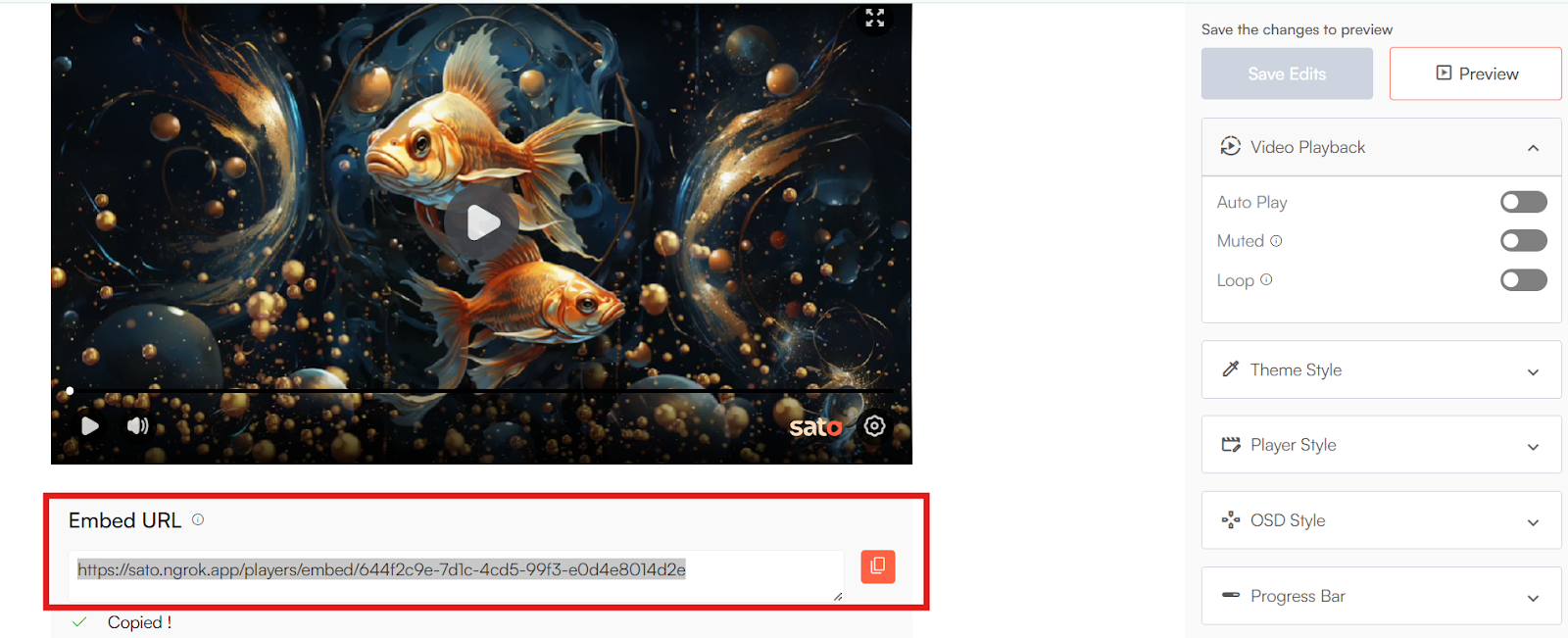
- Now paste the URL into the input field in Canva, and click on ‘Add to design’.
The link will be added to your project, where it will be playable.
And voila. Your project will be ready to go live. And all of this is done in minutes.
We are soon launching the plugin in the Canva marketplace for seamless workflow.
It's high time you make your project turn heads. So do try out Sato, which is free forever. And if you feel like upgrading your plan, you can always switch to our Pro plan which is budget-friendly for smaller businesses or teams. The choice is yours.
Sato is here to help your vision come to life. We can’t wait to see what you create with it. Happy designing.