How To Create A Customizable Video Player Using Sato
The growing importance of web-based videos has gained significant momentum in recent years. Video players enable businesses to showcase their products or services in a visually appealing way, thereby capturing potential customers' attention as well as establishing a recognizable brand identity. This is why most businesses today use video players to embed videos on their websites.
However, every time a video is embedded using a third-party video player, you lose all branding capabilities. And, in the case of video players like YouTube, visitors may even be drawn away by external channel links or recommended videos that appear when you pause, or at the end of your videos, causing them to leave your site halfway through.
Hence, as a web designer or developer, you need your own customizable video player where you can personalize the player's appearance that matches the vibe of your website.
This is where Sato steps in, demonstrating why building a custom video player can be a real game-changer.
Why You Need Your Own Video Player
Standard video solutions, like YouTube, allow you to upload and embed videos easily. But here’s the catch; you cannot remove its branding or fully control how the player looks.
However, this is not the case with customizable video players. You can rebrand it as your heart desires.
With your own personalized player, you can create a more immersive user experience, amplifying brand recall. And the best part about these players is that you can make your videos ad-free, completely.
Sato – A No-Code Video Player Tool
Sato is an HTML5 video player that allows you to change the player’s appearance without any coding knowledge. From adding your brand logo, brand colors to icons and texts, to customizing the player buttons and everything in between – you have complete styling control over them.
With Sato, your team can deploy the custom video player, in minutes, ensuring a smooth playback and streaming experience across all devices.
Who is Sato for?
Sato is built for no-code developers, marketers and designers who want their videos to blend seamlessly into their website design.
Design Your Video Player With Sato
A reliable custom video player for your website is crucial to turn visitors into loyal customers. With Sato, you can present all your important videos – product demos, explainers, tutorials, or testimonials – in a well-organized player.
Creating your Sato Account
Step 1
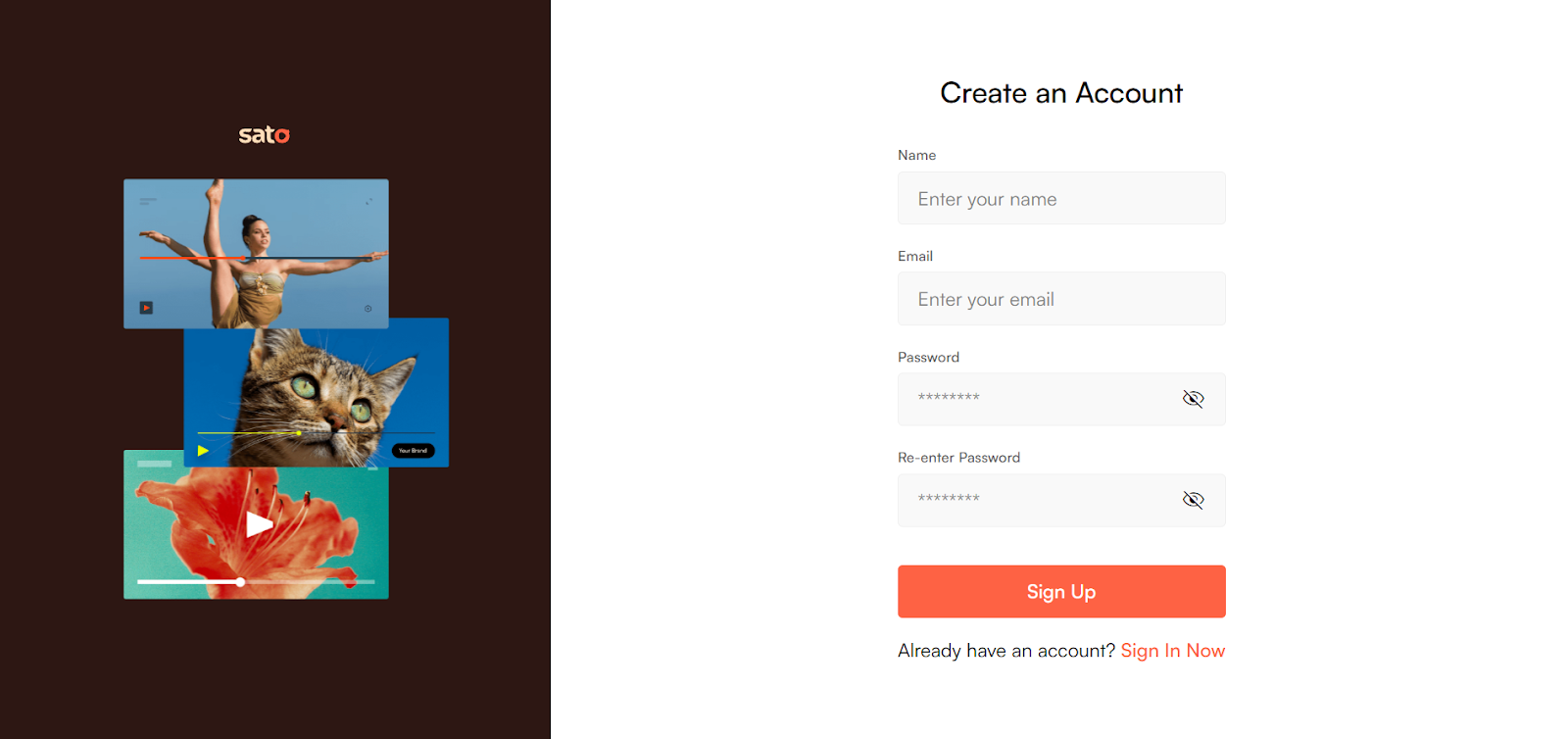
- Create an account on Sato using your email ID
- Create a password and re-enter it for confirmation
- Click on Sign Up, and you’ll receive a one-time password (OTP) on your email for verification
Note: If you don’t see the code in your primary inbox, check your spam folder
- Enter the code and click on Verify OTP
- Once verified, you’ll be taken to the pricing page
Step 2
Pick your desired subscription plan. If you choose our:
- Free plan, you’ll be taken directly to our dashboard
- Premium plan, complete the subscription and then you will be directed to the dashboard
Note: Registered Sato users can access the dashboard by simply putting in their email ID and password.
Creating a New Player
- Click on the "+ Create New Player” button
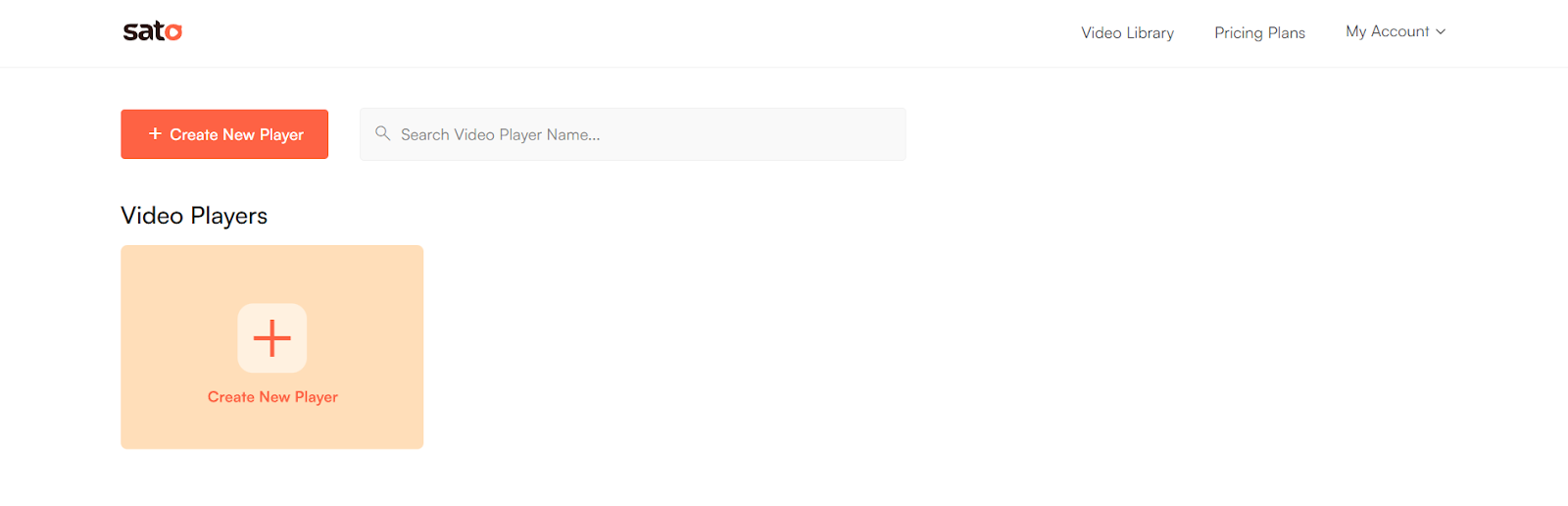
- Give your player a name (you can also rename it later, if you want)
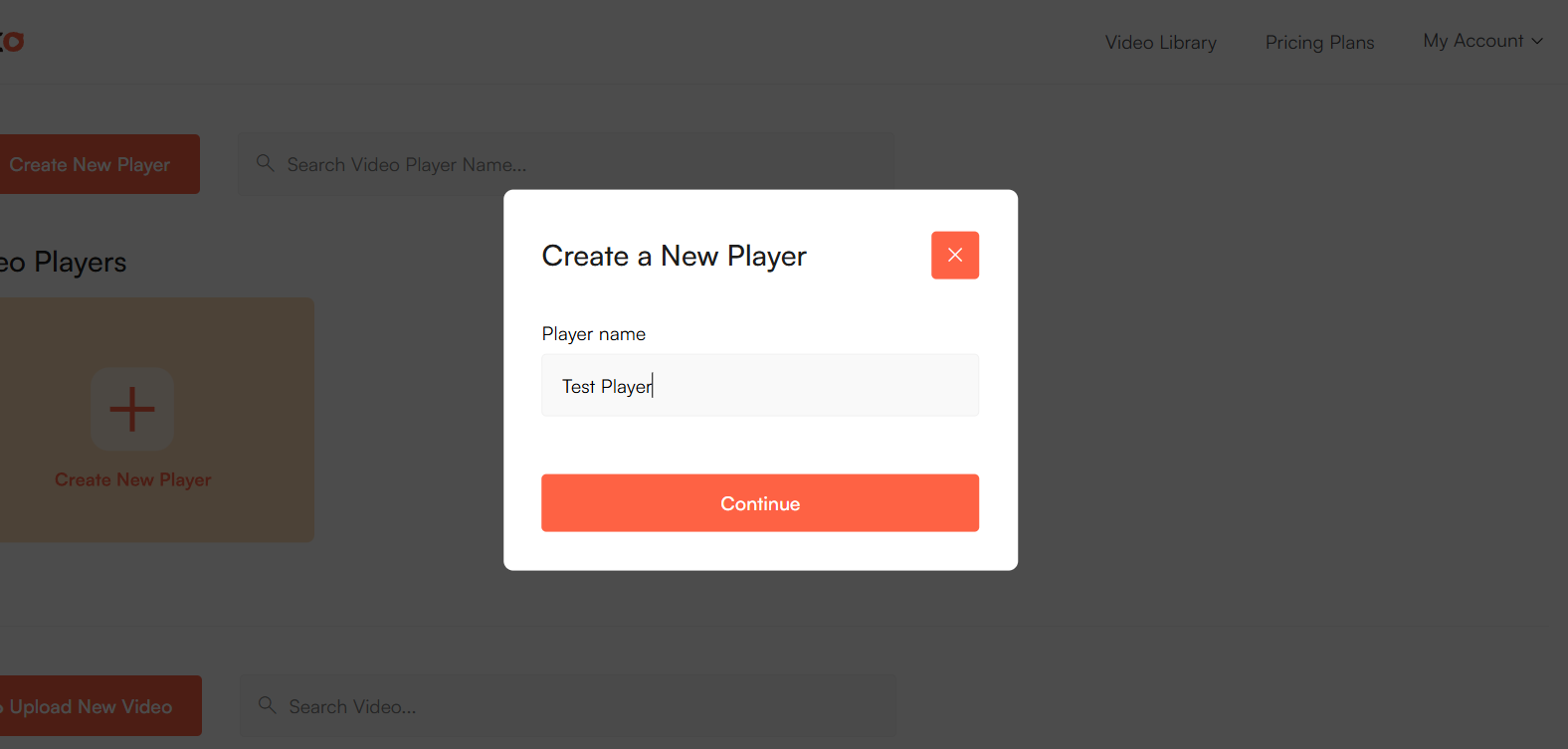
- You’ll then be taken to your video player dashboard
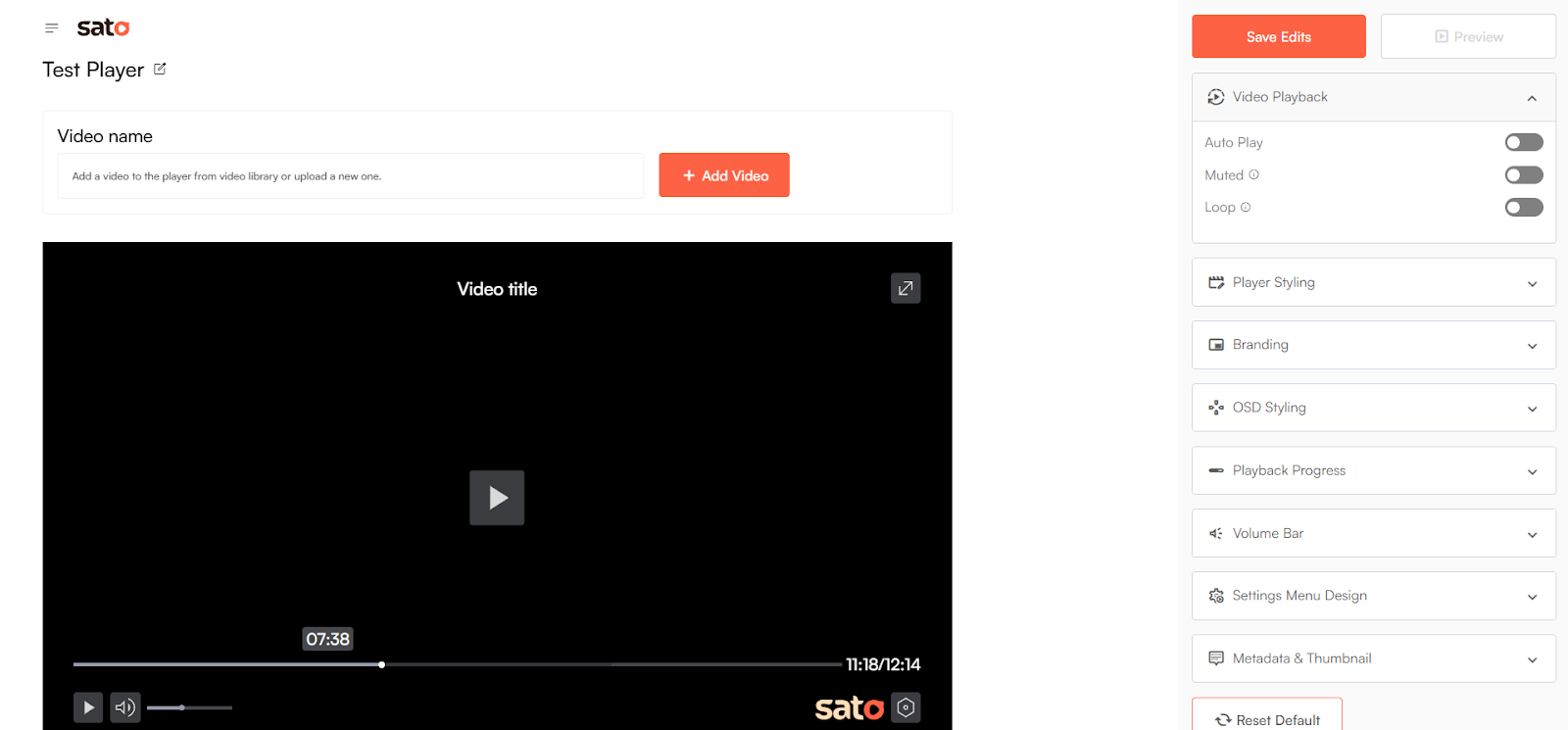
Adding/Uploading Videos
After creating a new video player, you can upload videos from:
a. Inside a Video Player
b. Dashboard and Video Library
a. Uploading from Inside a Video Player
- Click on the “+Add Video” button

- A pop-up window appears where you can upload a new video from your device or choose from an already uploaded video
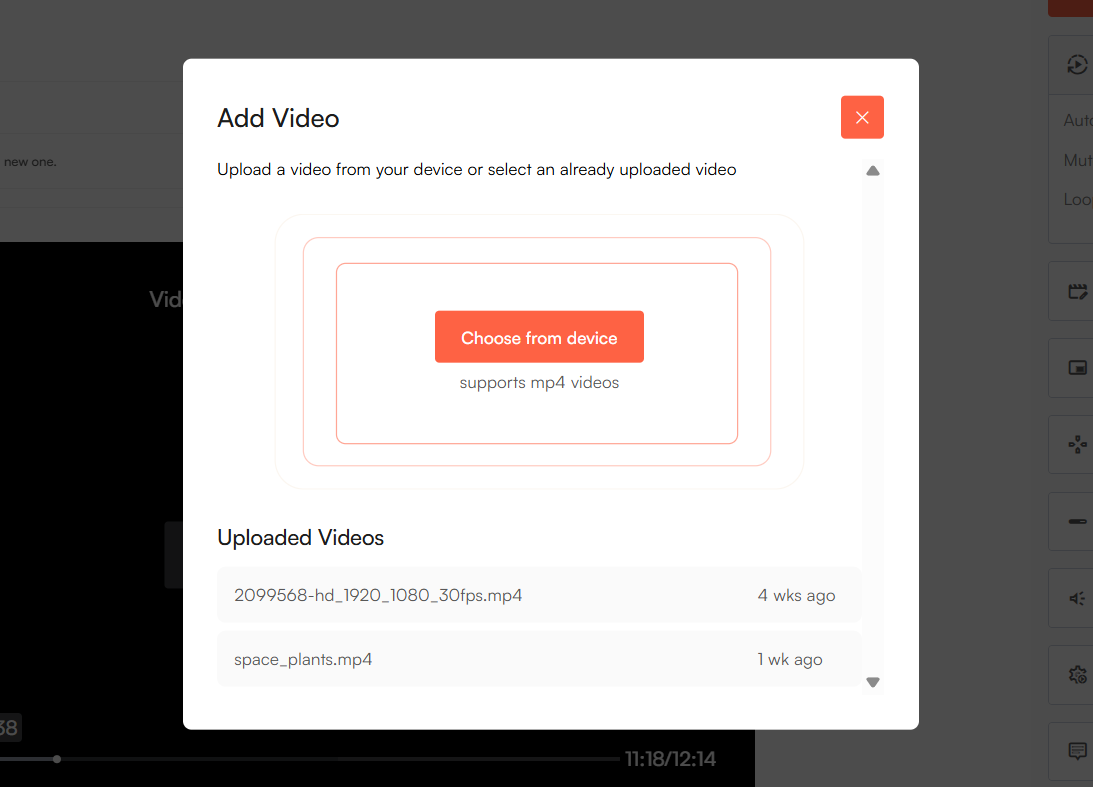
- If you “choose from device”, the file picker window will appear, allowing you to select the desired file from your device
- After selecting, click on “Upload Now”
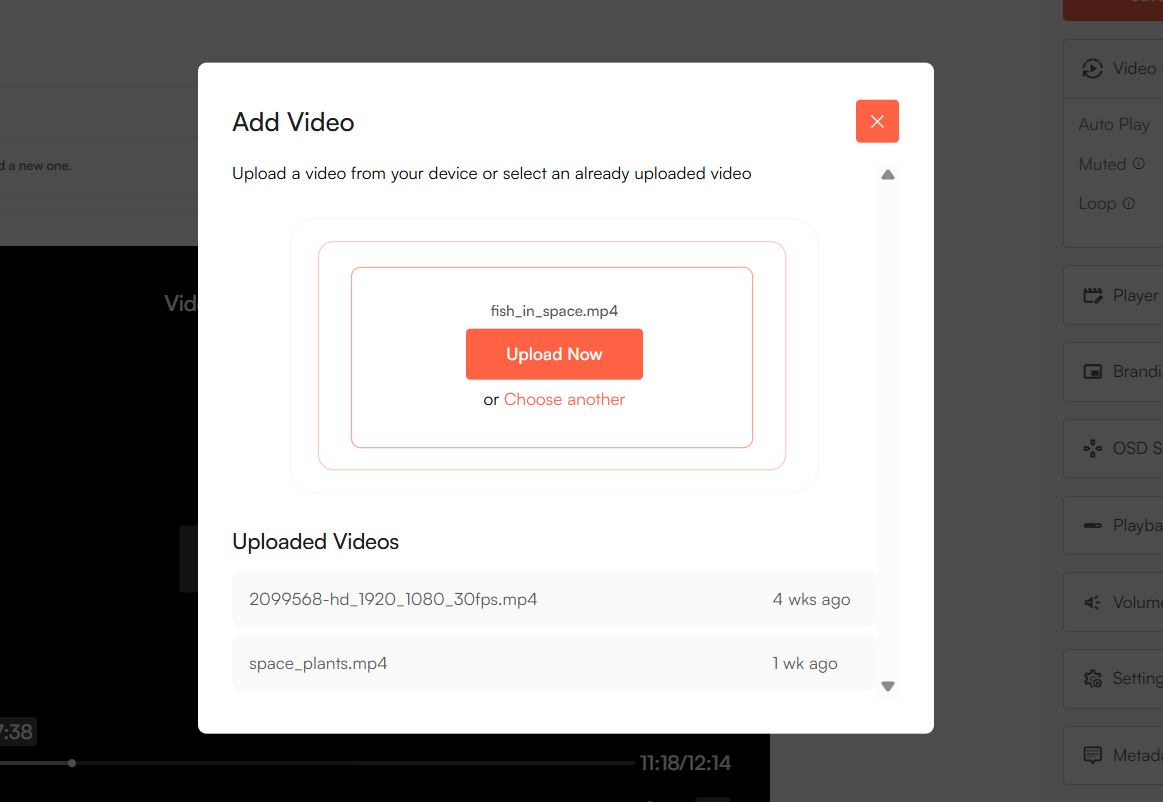
- In case you want to replace the video you just added, click on “Choose another” instead of clicking on “Upload Now”
- The selected video will then be uploaded on your Sato video library and linked with the Sato video player you created
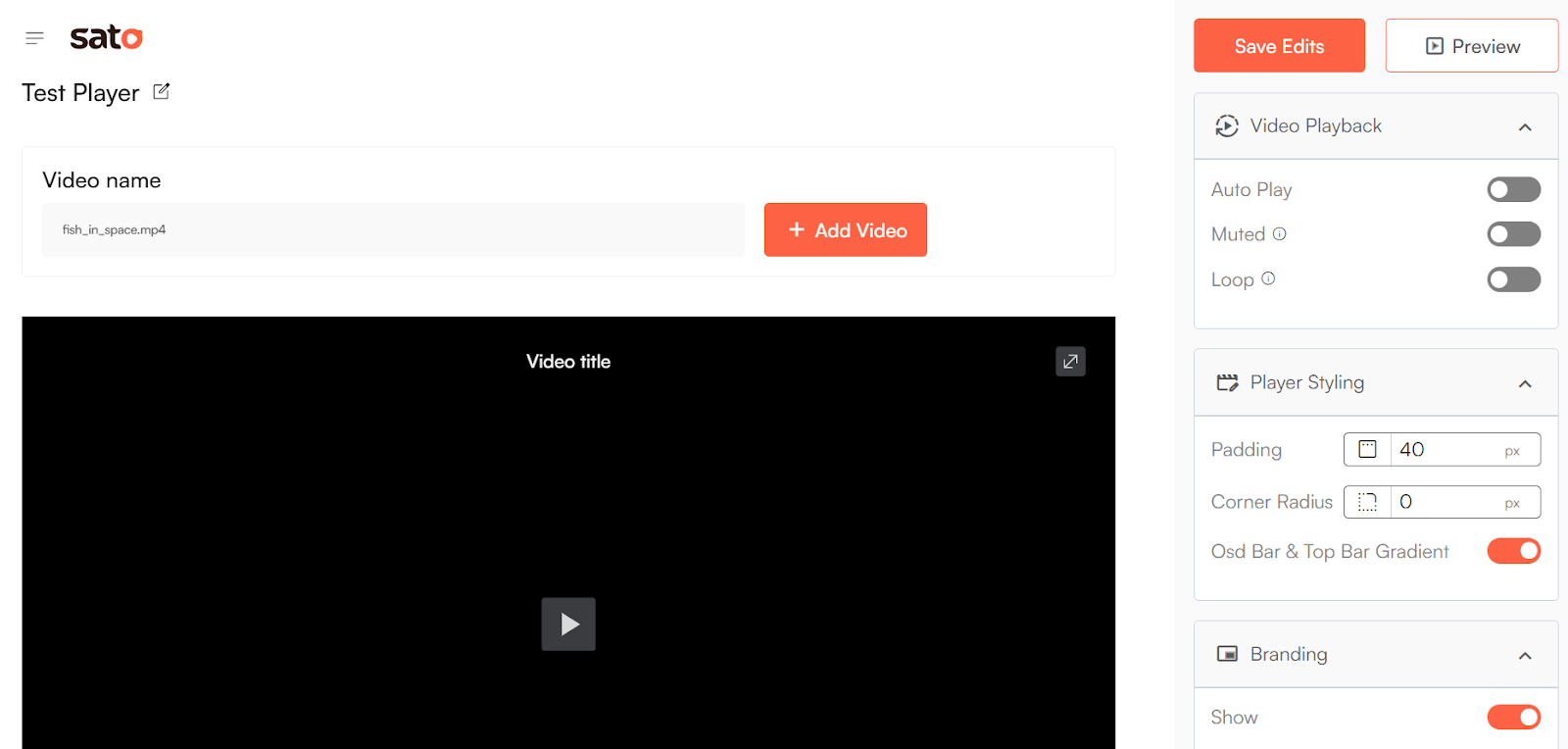
- Once your video is successfully uploaded, you’ll see the video file name added next to the “+Add Video” button (here, the video file name is ‘fish_in_space.mp4’)
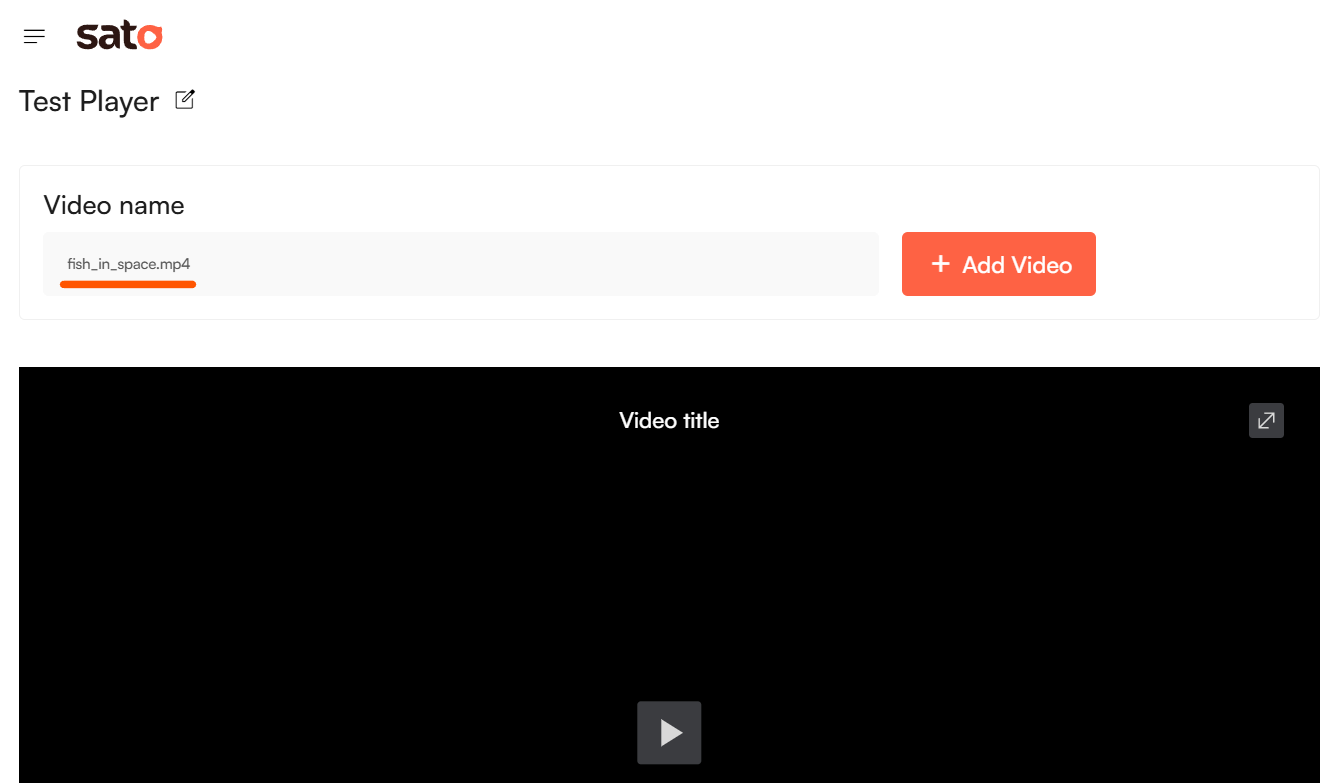
Note: If you wish to replace the video which you just added to the player, simply click on the “+ Add Video” to either upload one from your device or choose the video from the list found on the upload pop-up window.
b. Uploading from Dashboard and Video Library
Step 1
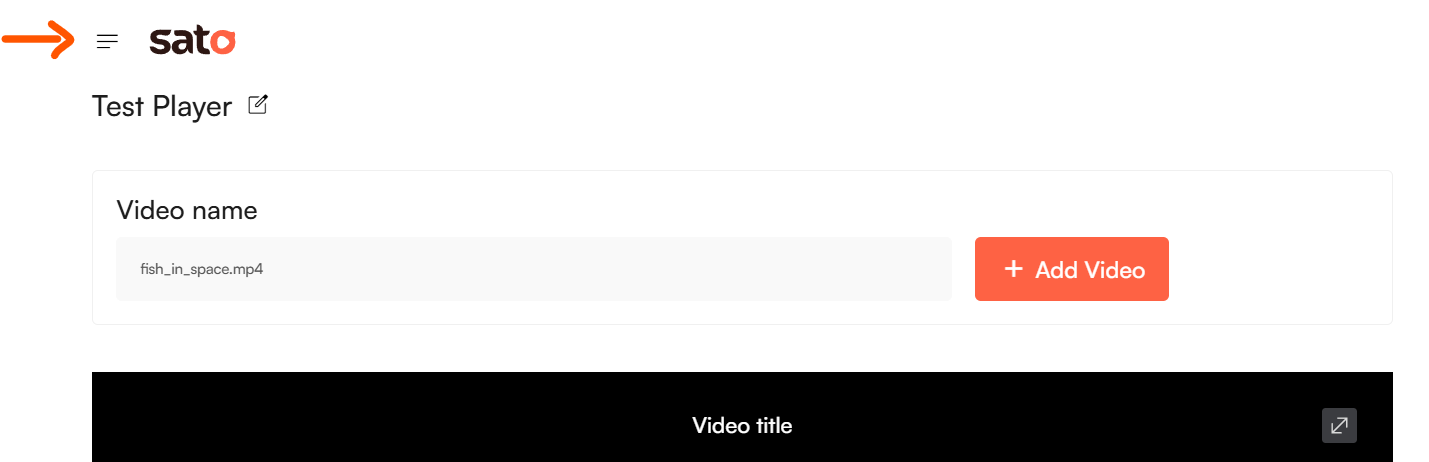
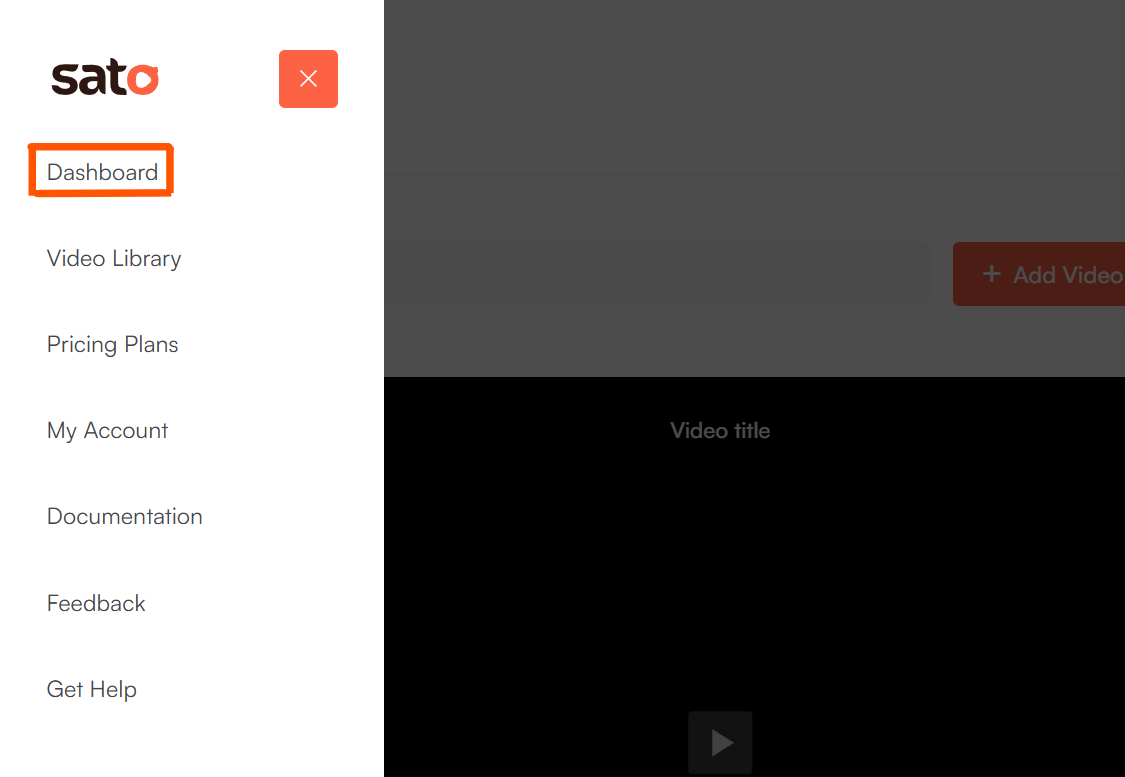
- To upload directly from the dashboard, click on the hamburger icon next to the Sato logo. Then click on ‘Dashboard’
Step 2
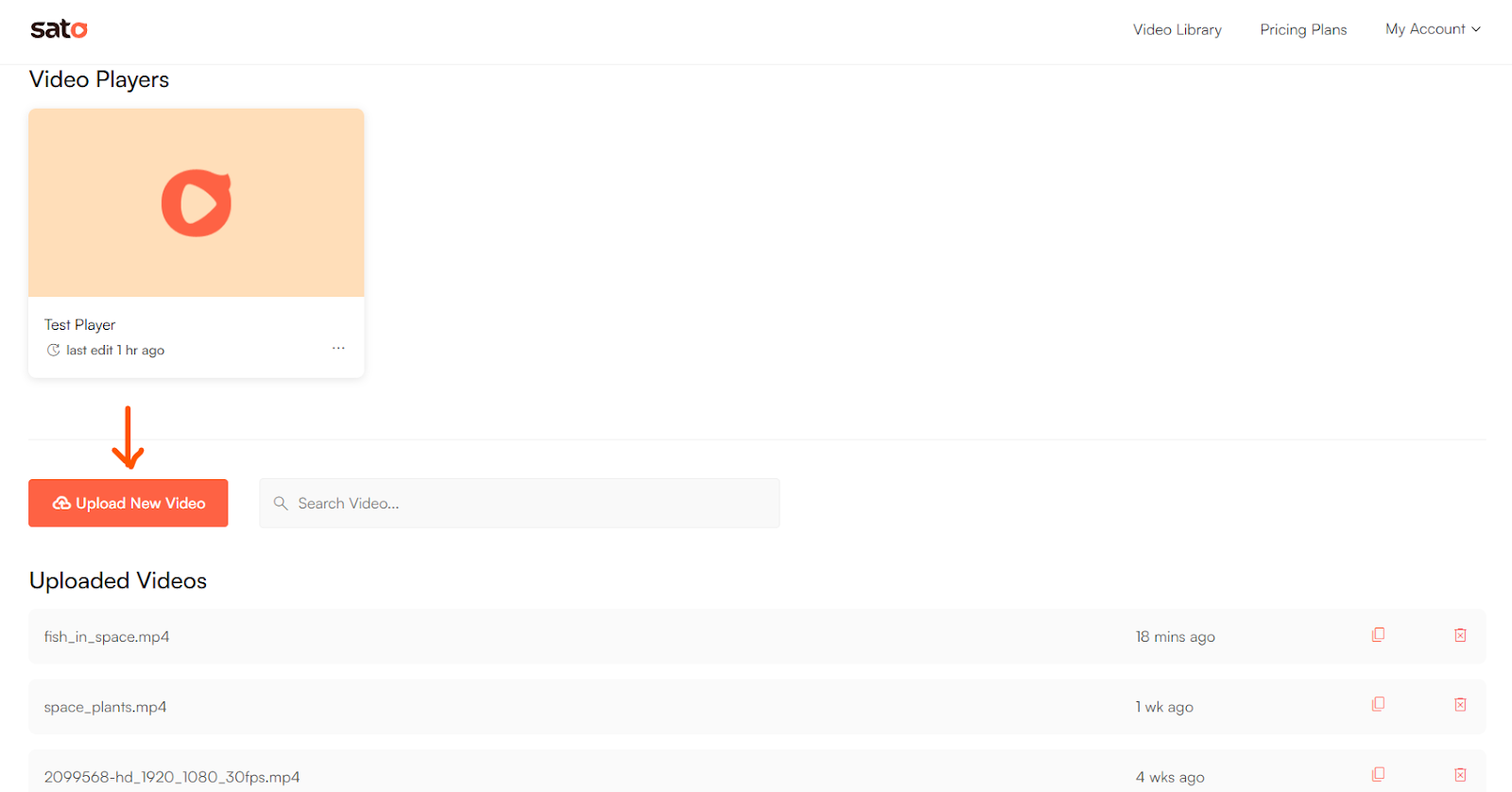
- Click “Upload New Video” and follow the same steps as you would while uploading from within the video player
Step 3
- To upload from your library, click on “Video Library” on the top navigation bar
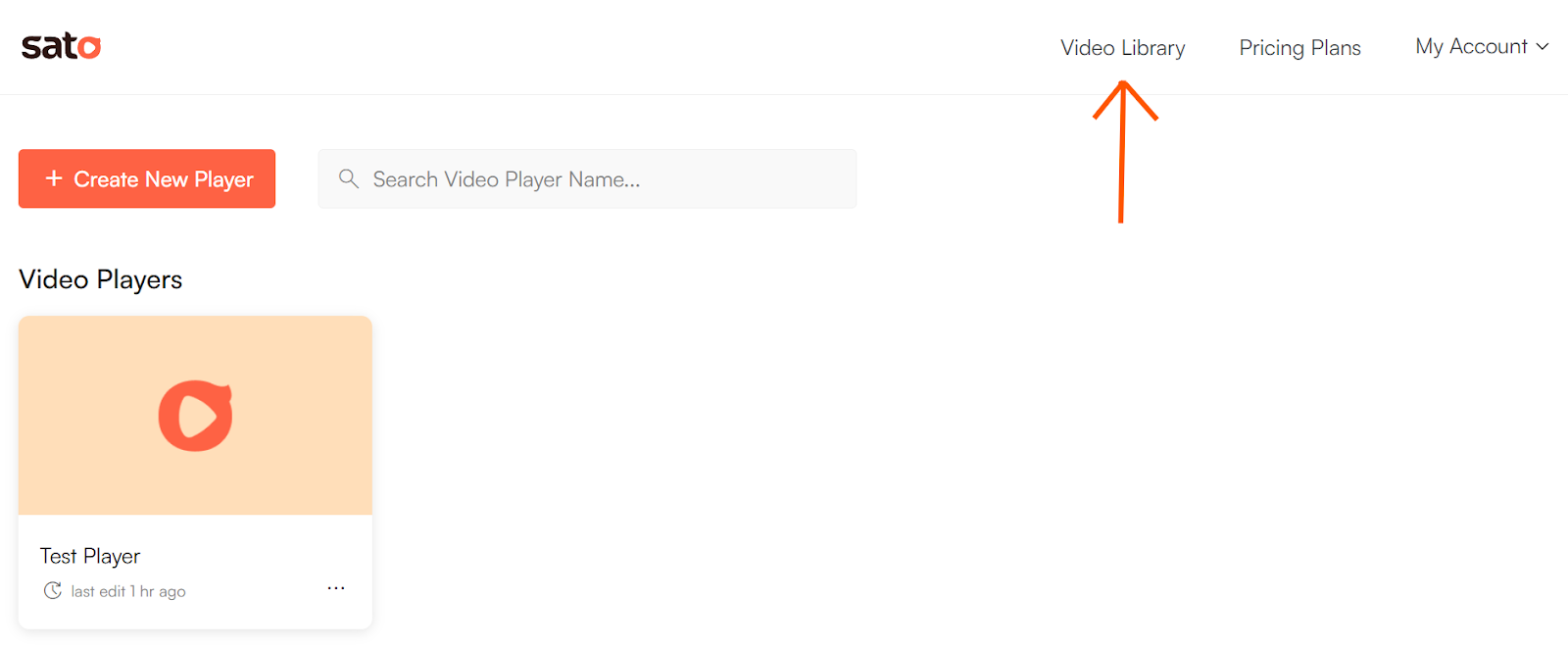
- Once you’re inside the Video Library, you’ll see the list of all your previously uploaded videos (if you have any)
- To upload a new video, click on “Upload New Video”, then follow the same steps as you did earlier while uploading directly from the dashboard or within the video player

Customize your player, your way
With 50+ customization options to choose from, Sato ensures that your video player gels with your brand, giving you complete control over the design, branding, and the viewing experience.
Branding
It’s time to make your player stand out. From your company logo, primary play button, control icons, playback progress bar and video timestamp to volume bar, and settings menu, you can completely style (e.g., show or hide and resize, as well as change hover color or opacity) your player to perfectly align with your brand’s vibe.
Video Playback
Features such as Autoplay, Muted, and Loop allows you to deliver a consistent experience across all devices.
Player Styling
You can give your audiences a “wow” experience by customizing your player’s inner padding, corner radius, OSD bar and top bar gradient (the gradient overlay seen on a player).
Metadata and Thumbnail
With optimized video metadata like video titles, descriptions and thumbnails, you can boost your site’s visibility.
Once everything has been customized, click "Save Edits" to bring your changes to life.
A customizable video player has, therefore, become the new norm. Given that consumers prefer an intuitive experience from every touchpoint, you can design the look and feel of your video player using Sato. Whether you're creating interactive product demos or thought leadership content, you don’t have to rely on third-party embeds; Sato enables your video to function efficiently.