No-Code Video Player for Developers: How to Embed, Style, and Ship Without the Overhead
Developers often approach no-code tools with skepticism, and fairly so. Many tools promise flexibility but deliver a walled garden: you get exactly the options the tool chose to expose, and nothing more. When it comes to video players, developers have traditionally turned to libraries like video.js, Plyr, or Shaka Player, accepting that building a custom UI means writing CSS, managing state, and babysitting browser compatibility.
But there’s a specific class of project where pulling in a full JavaScript player library is overkill. Marketing sites, portfolio sites, client work, content landing pages need a video player that looks great and integrates cleanly, but don’t need the full control surface of a headless player library. That’s where Sato sits: a no-code video player that gives developers a clean embed path without requiring them to maintain a custom player build.
The Problem with “Good Enough” Video Embeds
YouTube and Vimeo embeds are the path of least resistance, but they come with trade-offs developers are well aware of:
- You don’t control the player UI and the platform’s branding is always visible
- You can’t guarantee the autoplay or loop behavior you need
- Related video suggestions appear after playback, pulling users away from your content
- The player’s visual style is dictated by the platform, not your design system
Hosting your own video means wrestling with encoding, CDN configuration, and browser format compatibility. And building a custom HTML5 player from scratch is a project in itself.
Sato is a middle path: you host your videos on Sato (with its own storage system), customize the player through a visual dashboard, and get back a clean embed URL or iFrame snippet that you can drop anywhere.
How the Embed Works
Sato gives developers two integration methods:
Embed URL
After creating and styling your player on the Sato dashboard, you get an embed URL that points directly to your configured player. Any platform that accepts iframe URLs, be it custom CMS backends, Webflow’s embed element, Notion, or direct HTML, can use this. The URL is persistent and reflects whatever styling you set in the dashboard, so updates made in Sato are live immediately without touching your code.
iFrame Code Snippet
For environments where you need the full tag (custom HTML, CMS template injections, any platform with a custom code field), Sato provides a ready-to-paste iFrame snippet. Copy it, drop it where you need it, and you’re done.
Both options mean there’s no player JavaScript to bundle, no CSS to maintain, and no encoding pipeline to configure. The embed is lightweight and doesn’t degrade page performance. It as a lightweight code that actually performs better than typical third-party video embeds.
What Developers Control Through the Dashboard
The customization surface in Sato covers 80+ options, all accessible without code. For developers, the relevant ones are:
Playback behavior: Autoplay, mute by default, loop. These behave as expected per browser best practices — autoplay videos are muted by default unless the viewer unmutes them.
Player controls: Each control icon (play, volume, settings/speed, fullscreen, captions) can be individually toggled on or off. You can strip the player down to just a progress bar and a fullscreen button, or expose the full control set.
Progress bar: Height, colors (foreground/background/loaded/circle), scale on hover, spacing from the control bar, scrubber visibility, timestamp visibility. The Super Progress feature creates a subtle perceptual effect that makes the video feel shorter, potentially improving completion rates.
Branding: You can remove Sato’s logo and replace it with a client’s brand mark, or disable branding entirely. Opacity is adjustable.
Call-to-Action cards: Pre-roll, mid-roll, or post-roll CTA overlays with configurable URL, heading, description, button text, placement, and an optional image.
Metadata & Thumbnail: A custom thumbnail for the player, video title display controls, and metadata configuration that affects web discoverability.
Video Storage and Library Management
Sato handles video hosting through a plan-based storage system. You can upload videos from two places: directly within a player during setup, or from the Video Library in the dashboard. The Video Library gives you a centralized view of every uploaded video, and you can reuse any uploaded video across multiple players without re-uploading.
Storage limits are visible from the dashboard so you always know your current usage. When you’re running low, you can either upgrade your plan or delete unused videos from the library. Plan upgrades automatically expand your storage limit.
This is meaningfully different from managing your own video storage. You get a CDN-backed hosting solution without configuring S3 buckets, setting up CloudFront distributions, or dealing with transcoding pipelines.
White-Label Video Hosting: What It Means in Practice
For developers doing client work, Sato’s branding controls make it a functional white-label video hosting solution. Here’s what the flow looks like in practice:
- Create a player in Sato, name it for the client project
- Upload the client’s video to Sato’s library
- Replace the Sato logo with the client’s brand mark
- Style everything, from colors, corners, to control layout, to match the client’s design system
- Generate the embed code and drop it into the client’s CMS or website builder
The client sees their brand. Visitors see a native-feeling player. You delivered a polished result without building or maintaining a custom player codebase.
Platform Compatibility
Sato works across all major no-code builders via its embed methods:
- Framer: Sato has a plugin on the Framer Marketplace. Install it, log in with your Sato account, and your players and video library are accessible directly from the Framer plugin panel.
- Any HTML environment: Use the iFrame snippet in any platform that accepts custom HTML — this covers virtually every CMS, page builder, and headless frontend.
Sato player vs. Building your custom video player
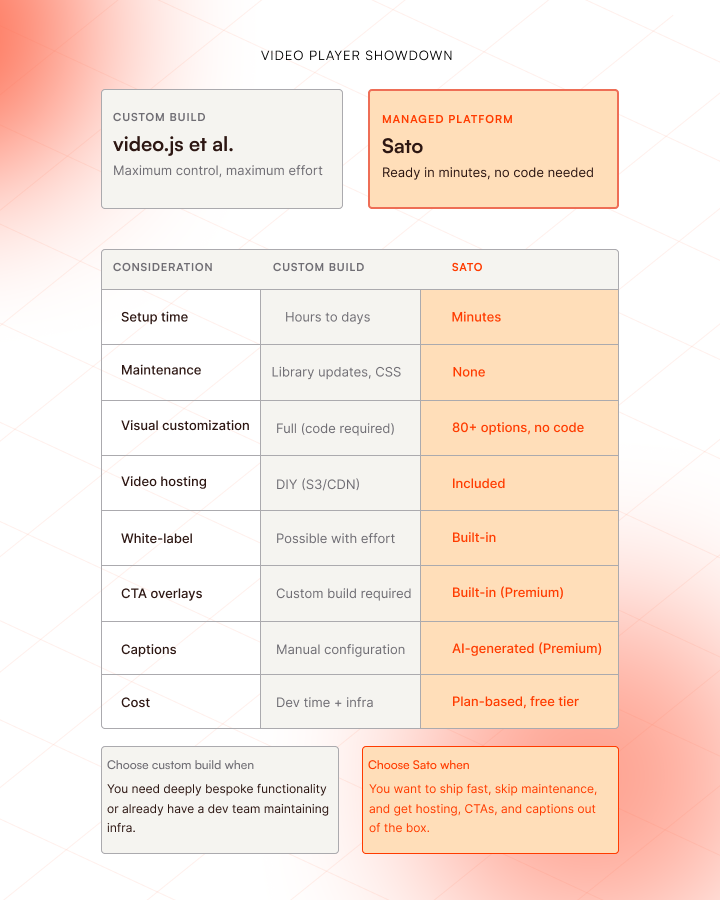
For client projects where you need a polished, branded player without the maintenance burden, Sato removes a significant amount of scope. The customization surface is narrower than building from scratch, but for most marketing and content use cases, it covers everything that actually matters.
Getting Started
Sign up at satoplayer.com. The free plan includes all customization features and storage for up to 10 videos (200 MB each). No credit card required.
Once you’ve created your player:
- Upload your video from the dashboard or Video Library
- Style the player through the customization panel
- Copy the embed URL or iFrame snippet from the player dashboard
- Paste it wherever it needs to go
Updates to the player styling take effect immediately without touching your embed code and the URL or iFrame always reflects the current saved state of your player.
Sato won’t replace a full headless player for applications that genuinely need that level of control. But for the significant portion of web development work where “we need a great-looking video player, quickly” is the actual brief, it’s a clean, maintainable, and surprisingly capable solution.
.png)